 Whid
Whid
What Have I Done?
Track time without breaking flow
Keyboard-first time tracking for macOS.


Easy tracking
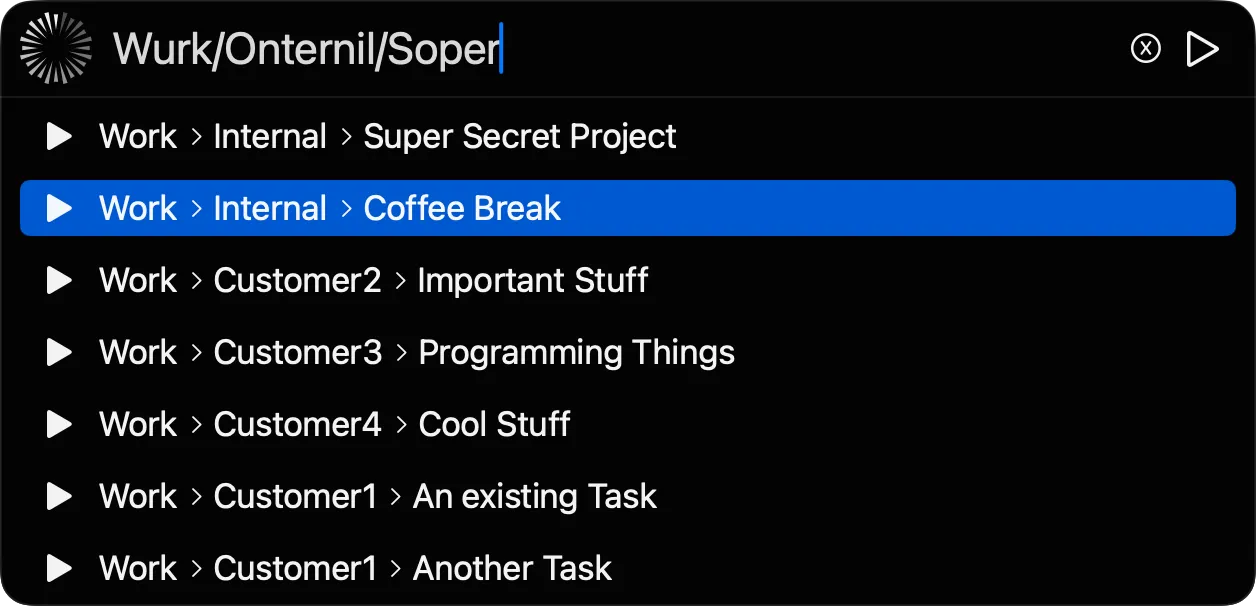
Use a few simple shortcuts and fuzzy search to track tasks without disrupting your work.
- Open the compact tracker from anywhere with ⌘ .
- Fuzzy search finds your existing tasks as you type
- Press Enter, and you are tracking
Forgot to start your timer?
No problem, you can easily fix it with our powerful commands.
- Type 13:00 or -20m after a task name to backdate it
- Any task that was already running stops right where the new one begins
- Fine-tune any time frame later in the main window

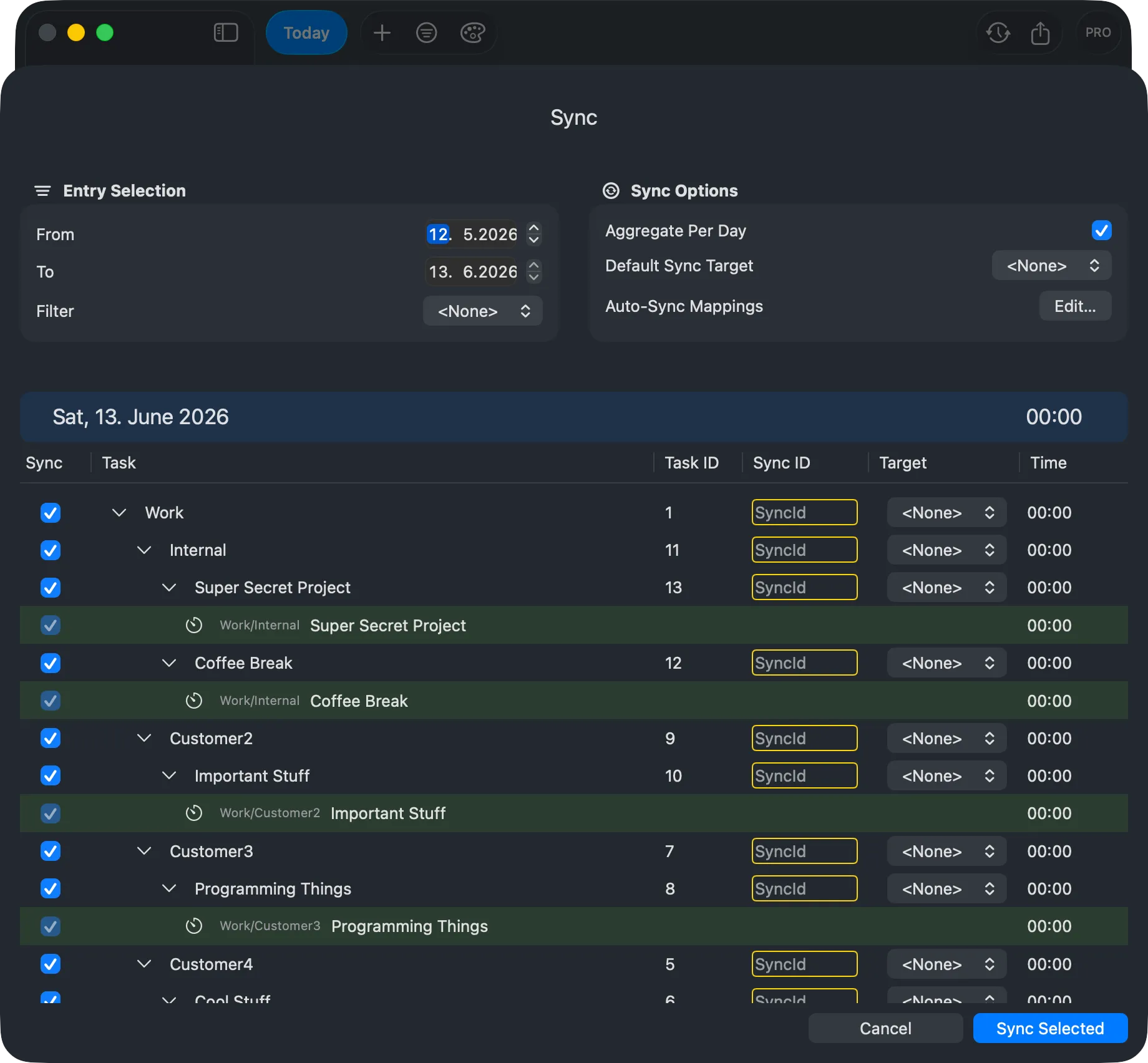
Sync your times with PRO
Forget about wasting time with entering your working hours manually.
- Connect Jira, Asana, ClickUp, YouTrack & more
- Map a task once, then sync with a single command
- Stop entering your working hours twice
See your week at a glance
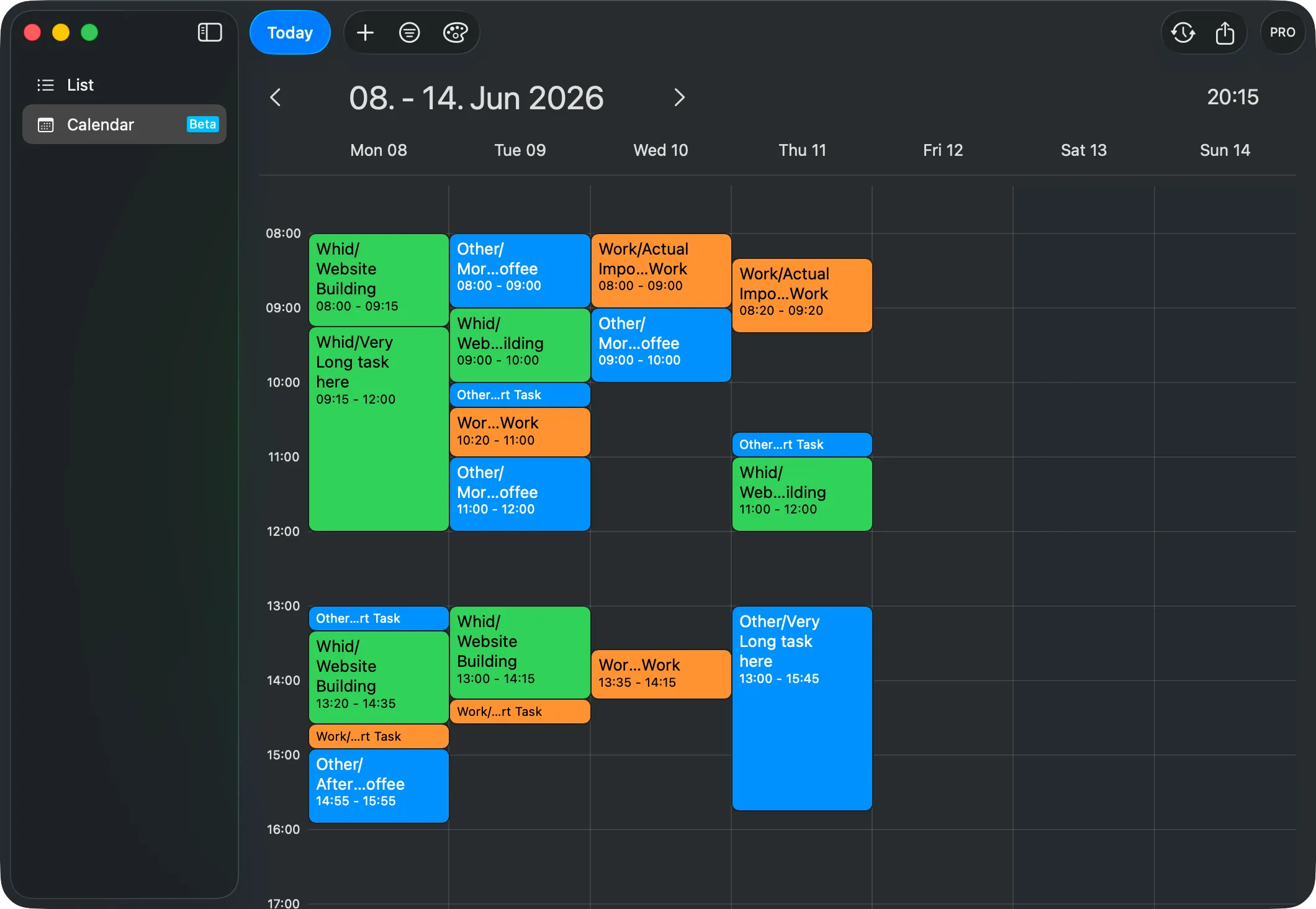
The weekly calendar lays out everything you tracked so you can review and tidy up your time.
- Every tracked entry mapped onto a familiar week grid
- Spot gaps and overlaps in your day instantly
- Create & edit entries right in the calendar with PRO
Sync your times with the project management tool of your choice







…and more coming.
Missing an integration? Contact us and let us know.
Free vs PRO
Whid's core is free, forever. PRO adds syncing with your project management tools.
| Free | PRO | |
|---|---|---|
| Keyboard-driven time tracking | ✓ | ✓ |
| Unlimited tasks & hierarchies | ✓ | ✓ |
| Short commands | ✓ | ✓ |
| CSV export | ✓ | ✓ |
| Weekly calendar view | ✓ | ✓ |
| Create & edit time entries in the calendar | — | ✓ |
| Sync with Jira, Asana, ClickUp & more | — | ✓ |
Try PRO free for 90 days No account needed, the trial starts right in the app.
Frequently Asked Questions
Is Whid free to use?
Most of Whid's features are free to use, except the integrations with project management systems. You can still try out the integration for 90 days for free to see if it makes your time tracking easier. You can always export your tracked times to CSV without additional costs.
How can I start tracking time on a task?
To open the compact tracker window, the default shortcut is Cmd + .. After opening the window, you can type the task you are working on and press Enter. This will start the tracking.
How can I end tracking time on a task?
To quickly end a task, you can open the compact tracker window by pressing the shortcut (default is Cmd + .) and either type your next task, or leave the field empty and press Enter. This will stop the tracking.
I forgot to start/end my timer. How can I adjust my booked times?
With Whid's powerful commands you can easily adjust your bookings. E.g. when starting a task, if you type '13:00' after your task name, Whid will start tracking your specified task at 1pm, and automatically close any previous tasks at 1pm. To see a full list of commands, please refer to the Short commands documentation.
How many tasks can I track in Whid?
With Whid you can track any number of tasks and even organize them in hierarchies!
Which platforms does Whid support?
Officially we support macOS. Please contact us if you are interested in a Windows or Linux version, we might find you a solution. 😉 Whid currently only has a desktop version.
Do I need an internet connection to use Whid?
You can track your times without internet connection. If you have a project management software where you have to keep track of your work, you only need internet connection during the synchronization step.
Ready to stop losing track of your time?