Whid
Whid

You can track your time in Whid, then synchronize your trackings with Toggl Track. This way you can get the best of both worlds.
- Connect to Toggl Track Create a new profile in Whid with your Toggl Track credentials.
- Set up sync mappings Automatically map the tasks you create in Whid to Toggl Track time entries.
- Benefit from sync mappings Include the Toggl Track project ID in your task names for easy handling.
- Sync to Toggl Track Synchronize your tracked times from Whid to Toggl Track.
Connect to Toggl Track
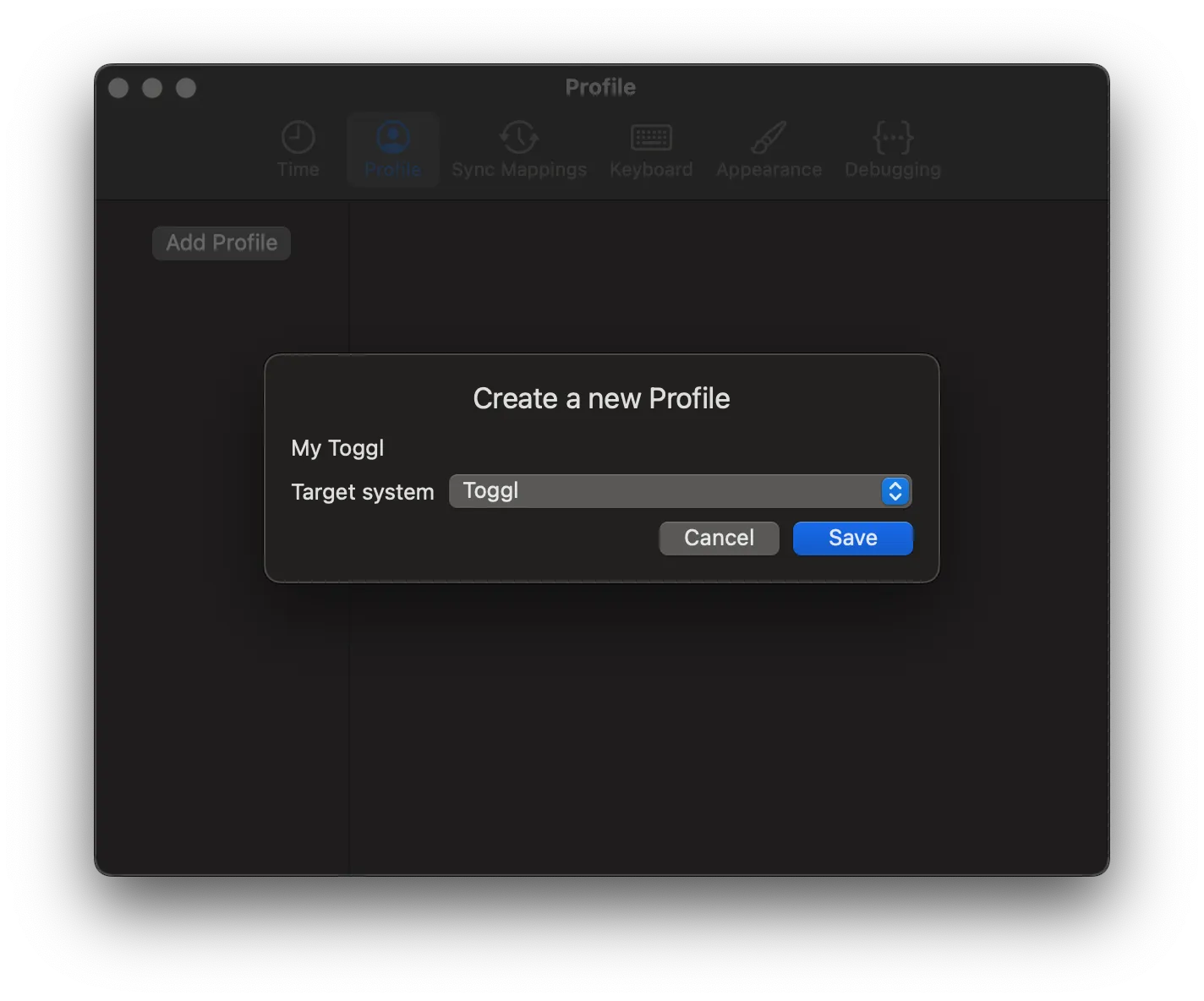
To add your Toggl Track profile, first you have to open the Settings > Profile tab in Whid. Then click on the “Add Profile” button, set a name for your profile (e.g. “Toggl Track” or “My Toggl”) and select “Toggl” from the target system selector.
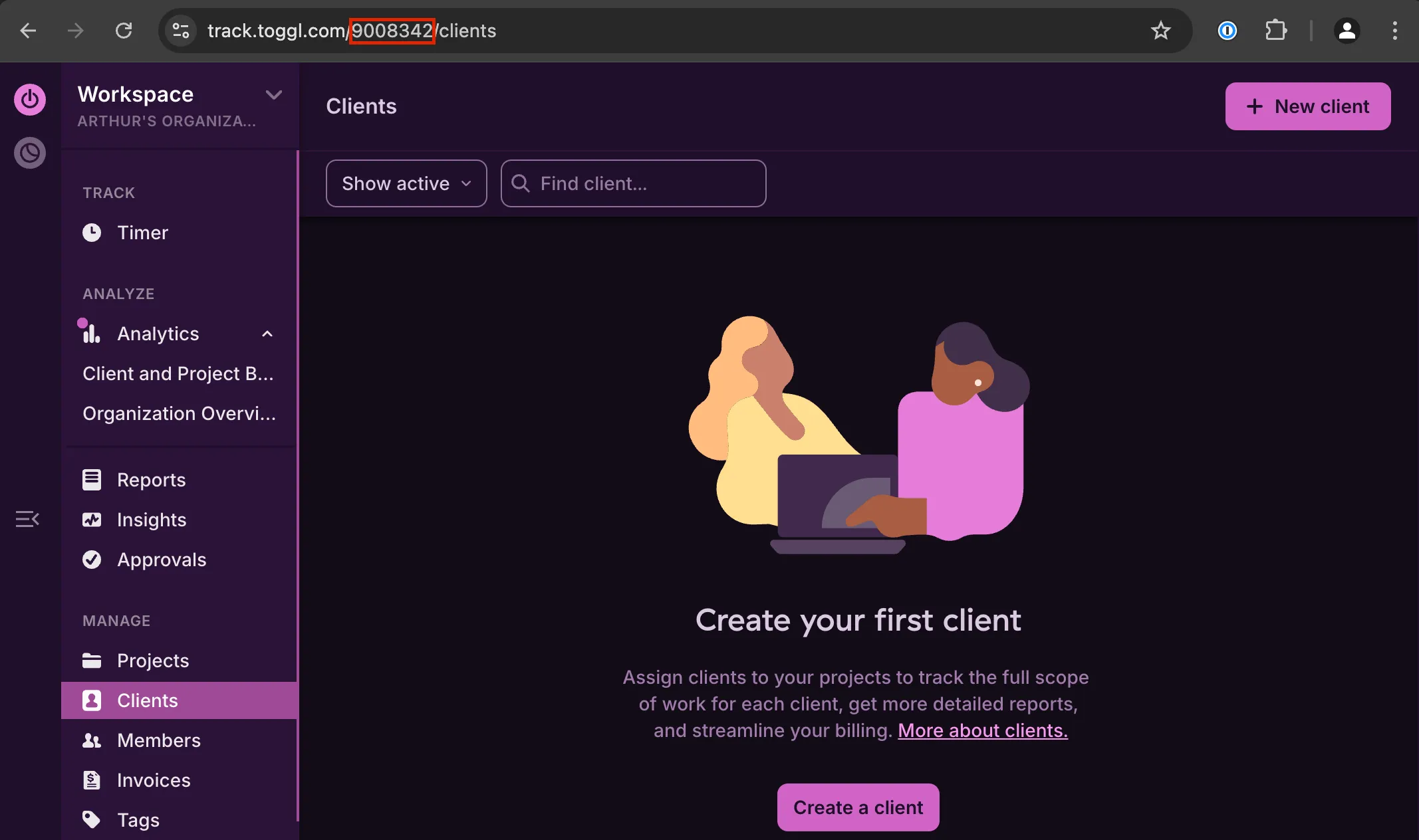
To fill the Workspace ID field, you can open any Manage page in Toggl Track, e.g. Manage > Clients. You can find the Workspace ID in the URL.

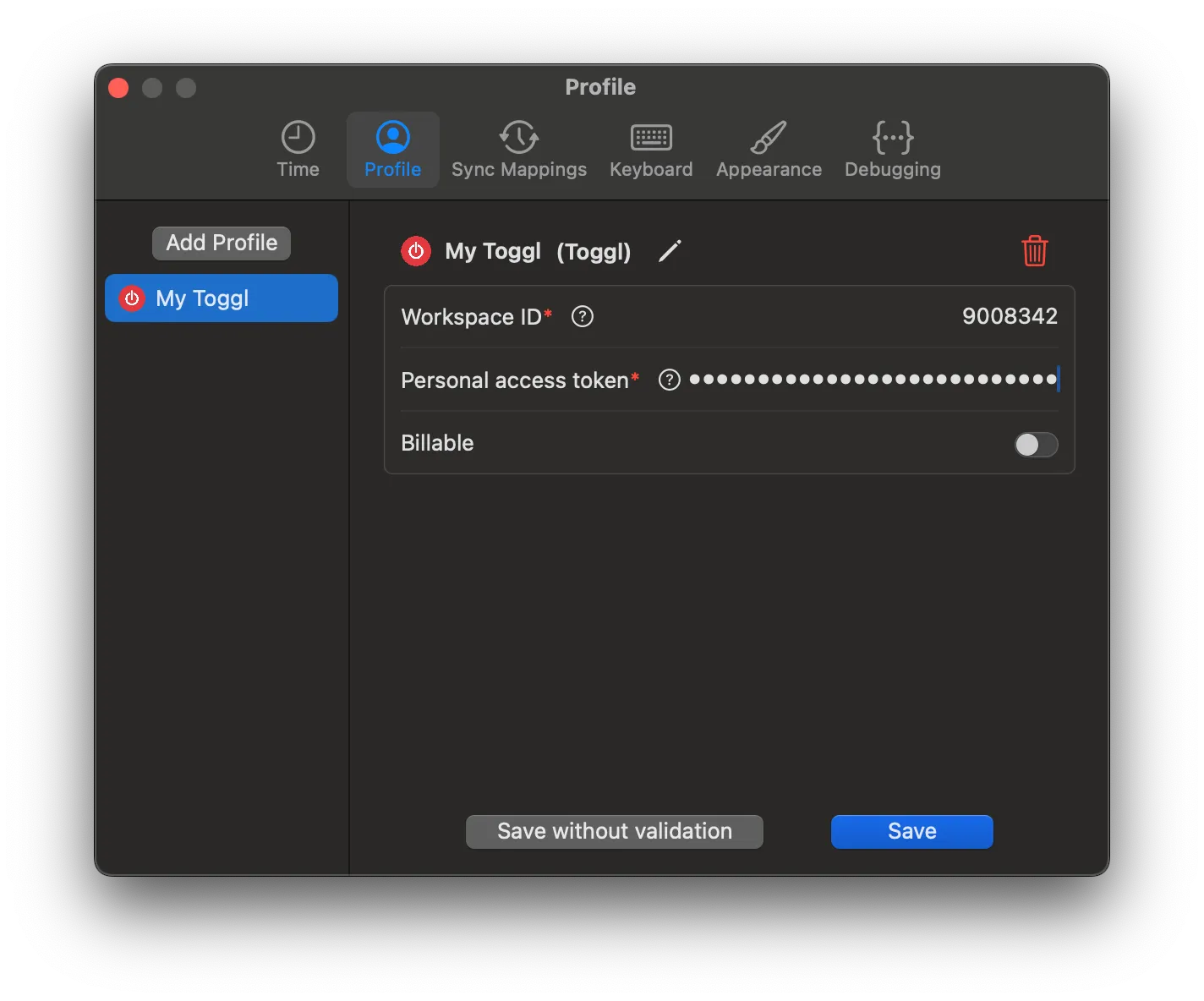
To fill the Personal access token field, you can open Profile > Profile Settings in Toggl Track, and scroll to the “API token” section. Here you can reveal your generated API token and copy it to Whid.
Note that Toggl Track only provides one API token at a time, so if you already integrated it with another application, you must use the same API token for Whid.
The last thing to set is whether your tasks should be entered as billable. Enabling it sets all tasks for this profile to billable.
Now you can save your credentials.
Whid validates your credentials on Save. If you are not connected to the internet while saving, you can choose the “Save without validation” option, but Whid will always need access when you sync your tracked times to Toggl Track.
Set up sync mappings
In Toggl Track you can sync your booked times to projects. These synced times will appear as new time entries. To make your sync even easier, you can set up automatic mappings between your tracked tasks and Toggl Track projects.
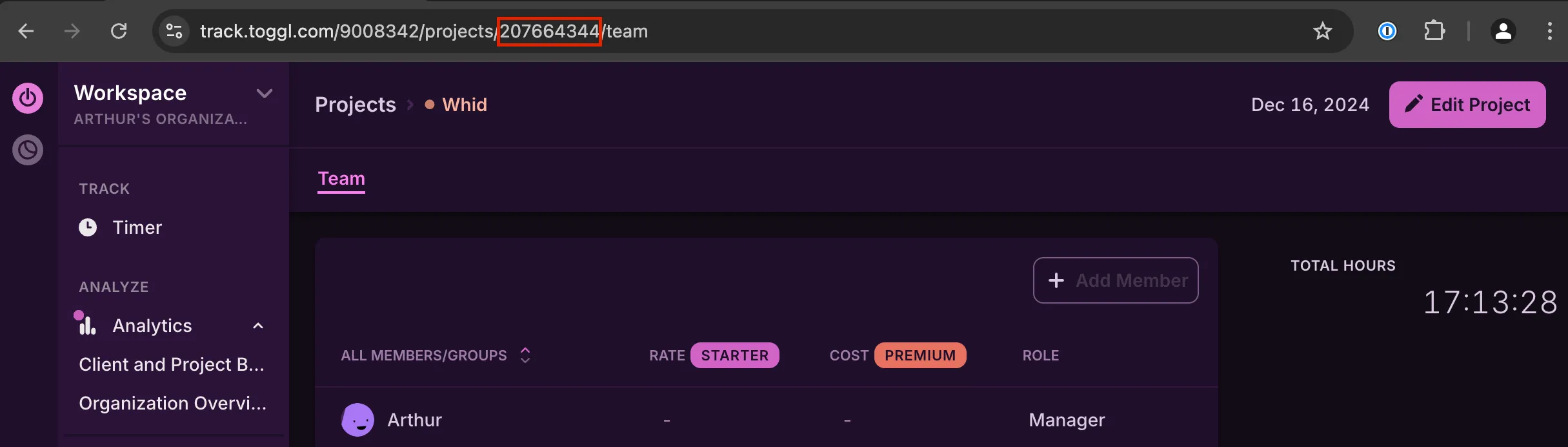
As a first step, you have to look up your project ID in Toggl Track. For this, open your project from Manage > Projects. You can find the project ID in the URL as digits.
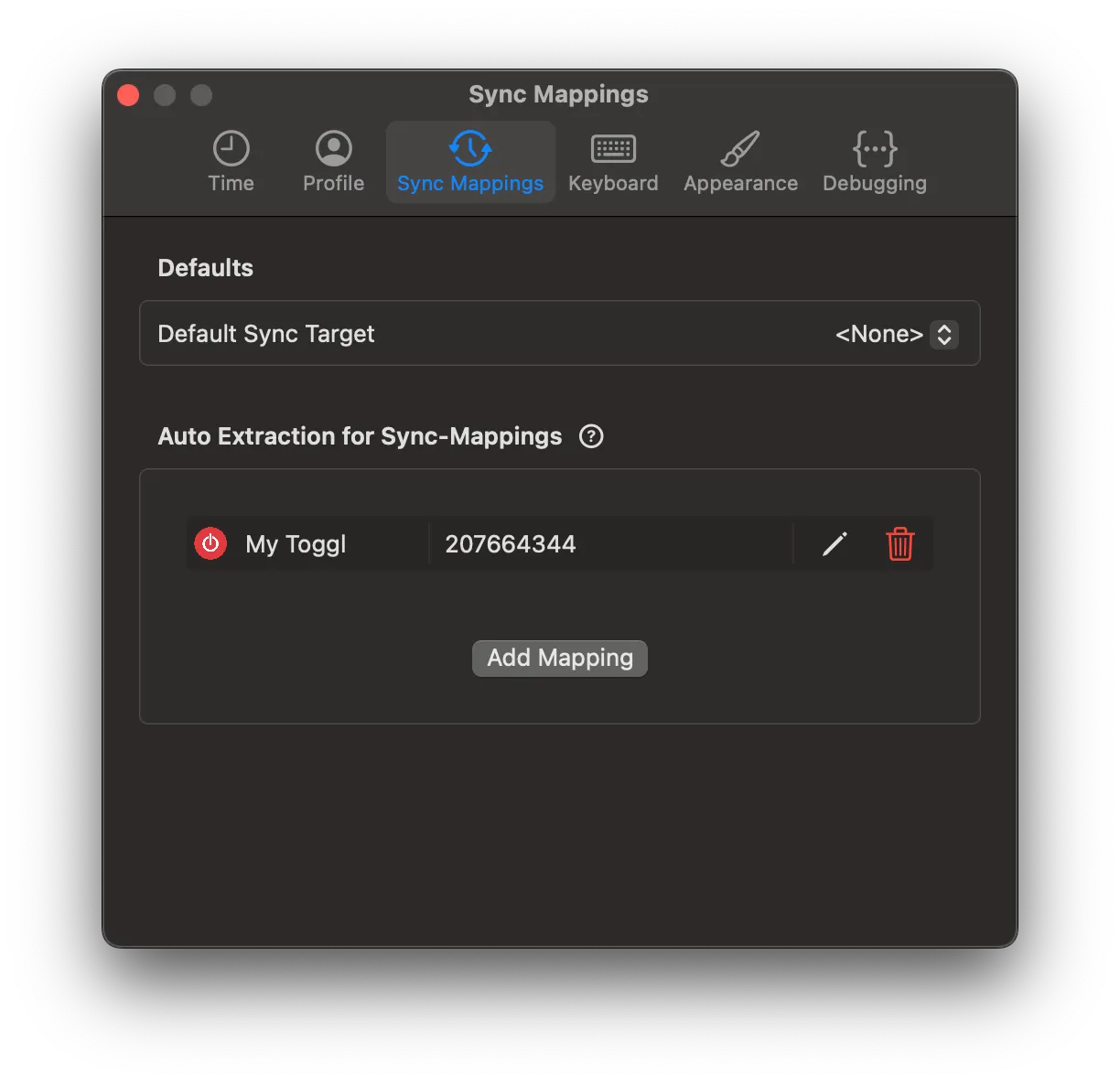
Now you can open the Settings > Sync Mappings tab in Whid.
Add a new entry in the “Auto Extraction for Sync Mappings” section: select your Toggl Track profile from the dropdown, and set the “Regex Pattern” to your project ID. In our case the pattern is set to 207664344.
Save the changes.
Benefit from sync mappings
To put the “Auto Extraction for Sync Mappings” to work, track your times with names that include their corresponding Toggl project ID.
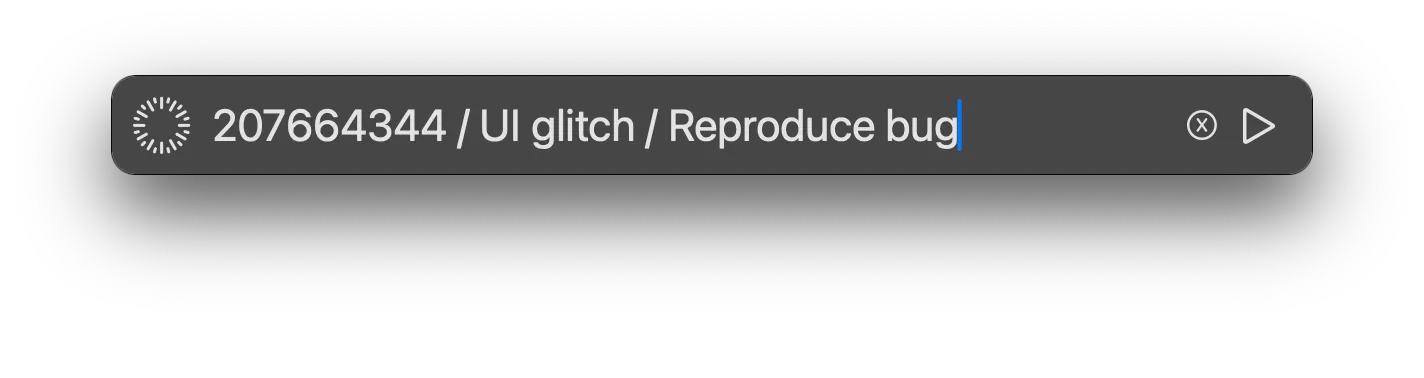
We recommend using the “task hierarchy” feature: you can create a task name that contains the Toggl project ID, a short description of the high-level issue you are working on, and the actual lower-level task you implement in the context of that issue.
For example, if you are a developer and you work on a bugfix, one of your task names could look like this: 123456789 / UI glitch / Reproduce bug.
Sync to Toggl Track PRO
Now you want to see all your tracked times in Toggl Track? Then it’s time to sync them!
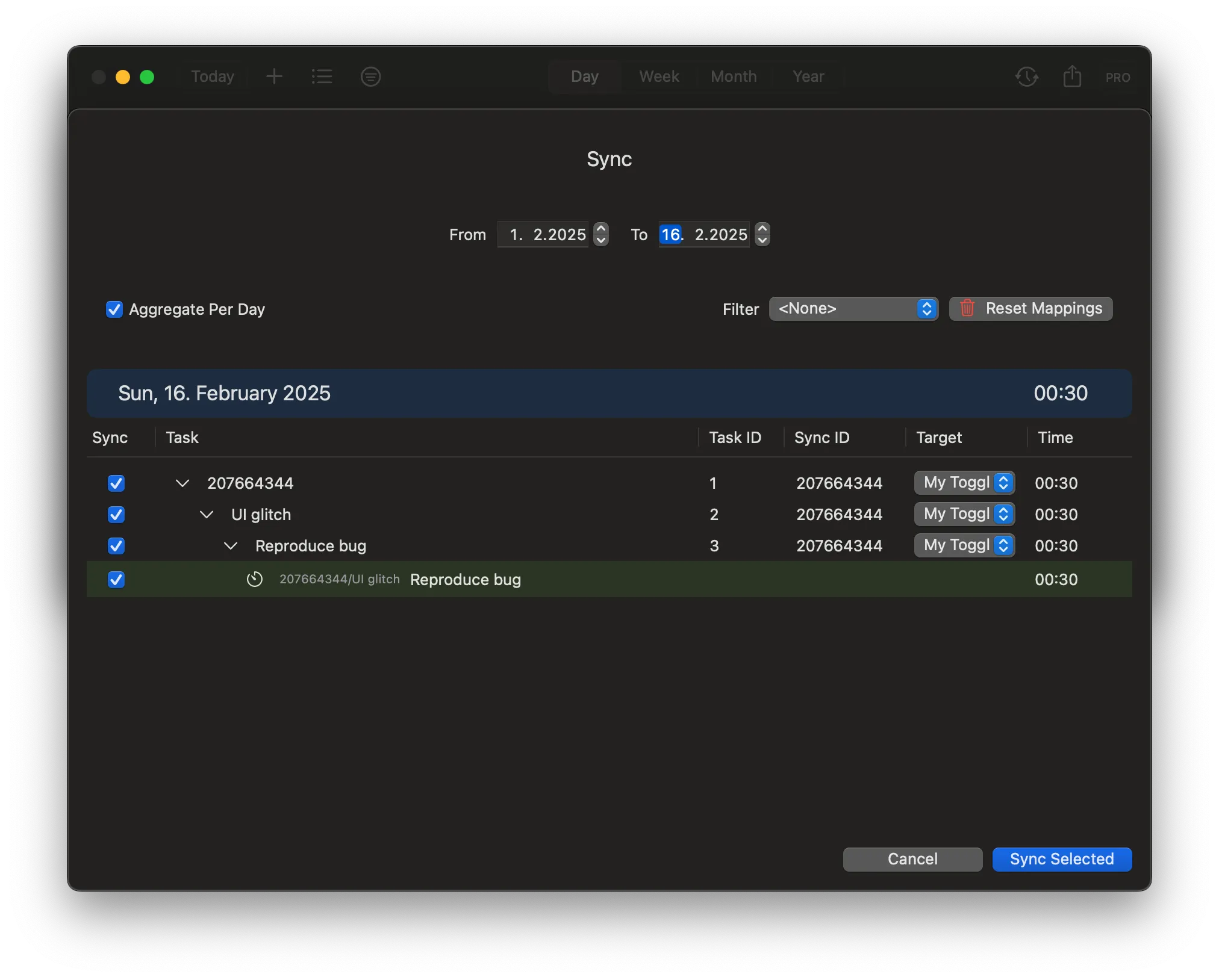
To open the sync overlay, first open the Main Window by right-clicking the tray icon and selecting “Main Window”. Then click the “Sync times” button in the upper right corner.
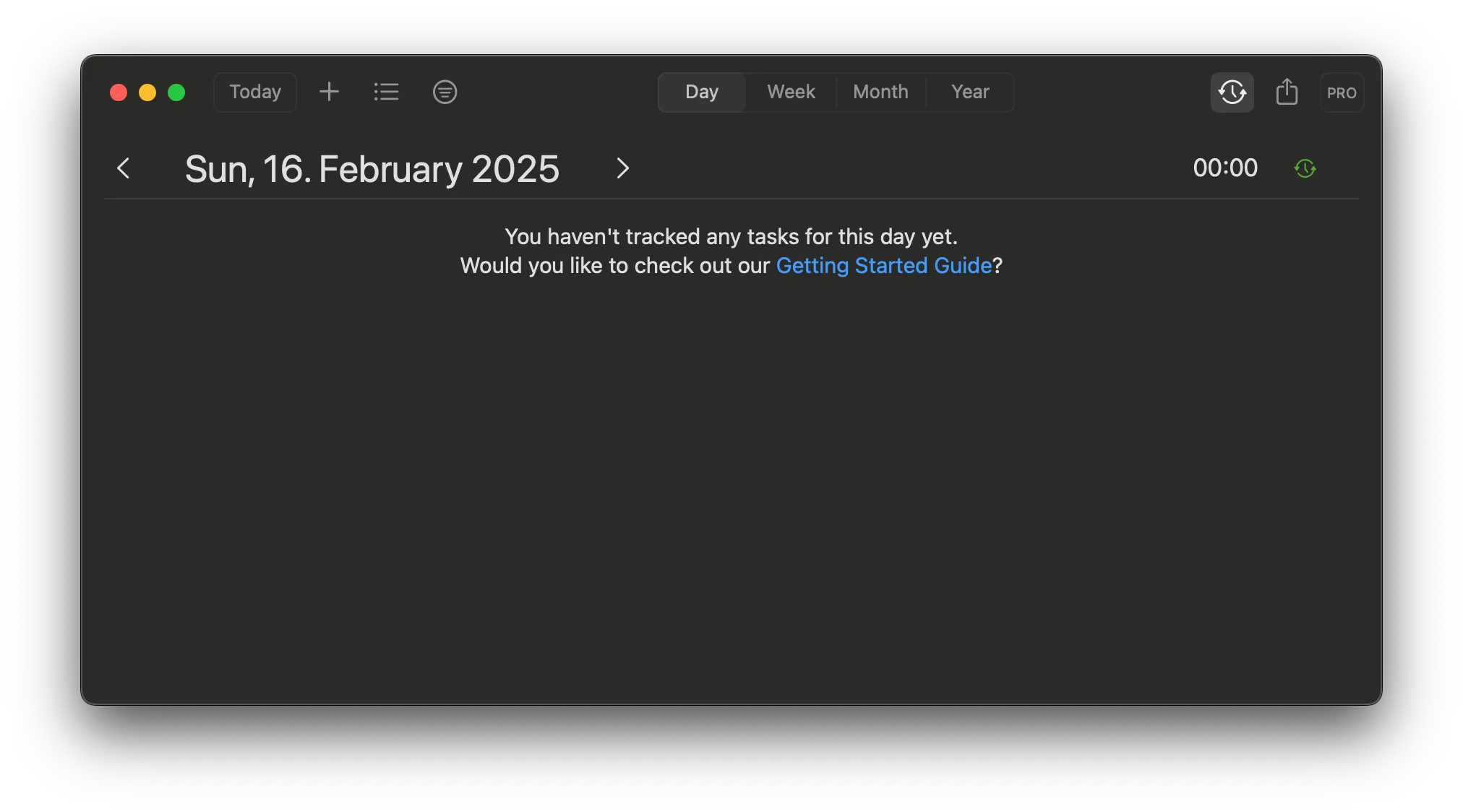
At the top, you can choose a time range for which you want to sync your entries.
If you use your Toggl project ID as described above, you might not have to adjust anything. But if something isn’t quite right, you can make adjustments as needed.
For each task you can enter a sync ID and select the profile which includes the system you want to sync to. You can also leave those fields empty for entries you don’t want to sync.
If Whid successfully detected the Toggl project ID in your recorded entries, it will automatically fill the corresponding project ID as sync ID, and set your Toggl Track profile as Target.
After selecting which entries you would like to sync and filling the corresponding sync IDs, you can click on “Sync selected”.
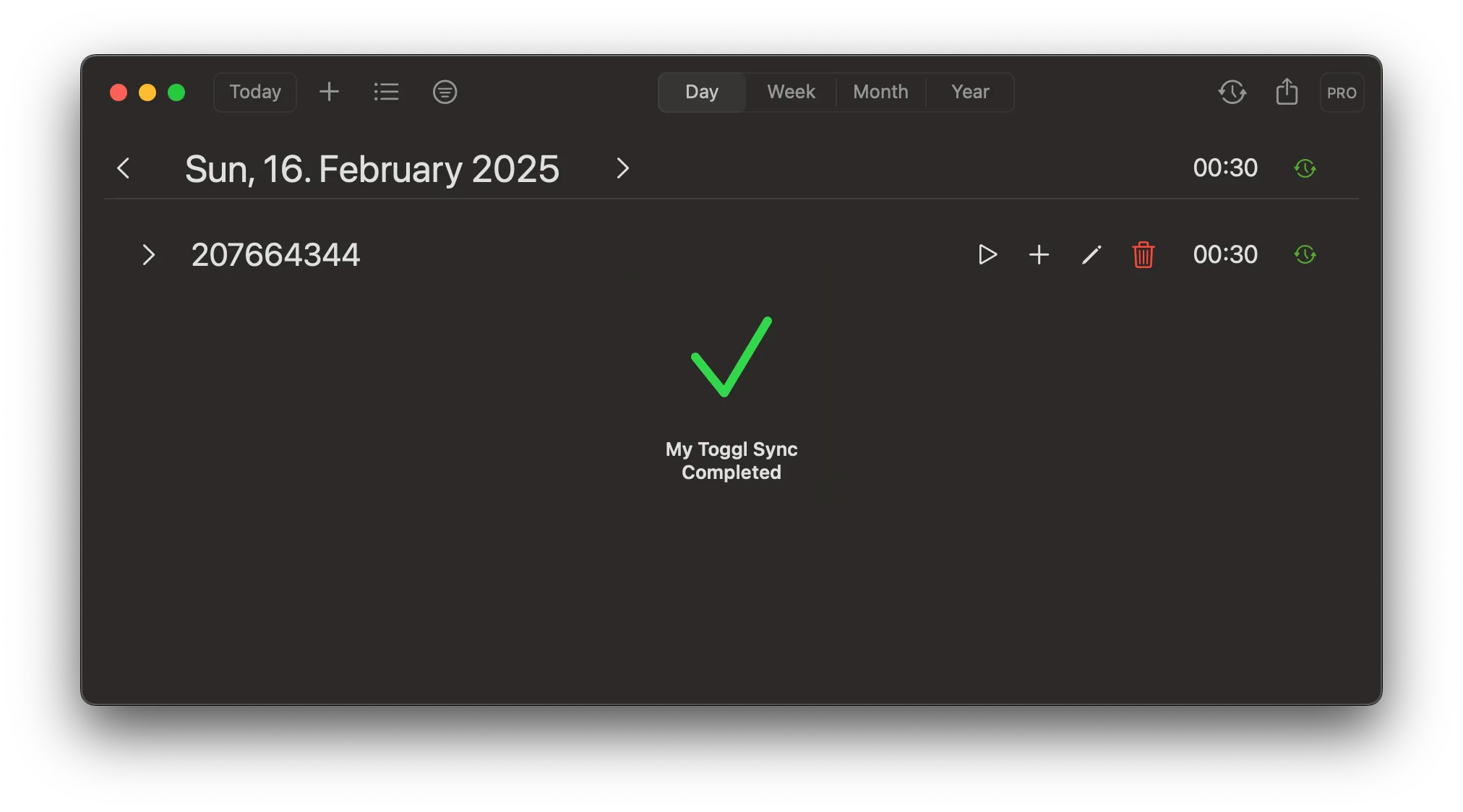
Whid then reports the result for each synced entry: a green checkmark means the sync was successful, while a red X indicates that something went wrong.